
How to Integrate Klarna On Site Messaging in WordPress Website
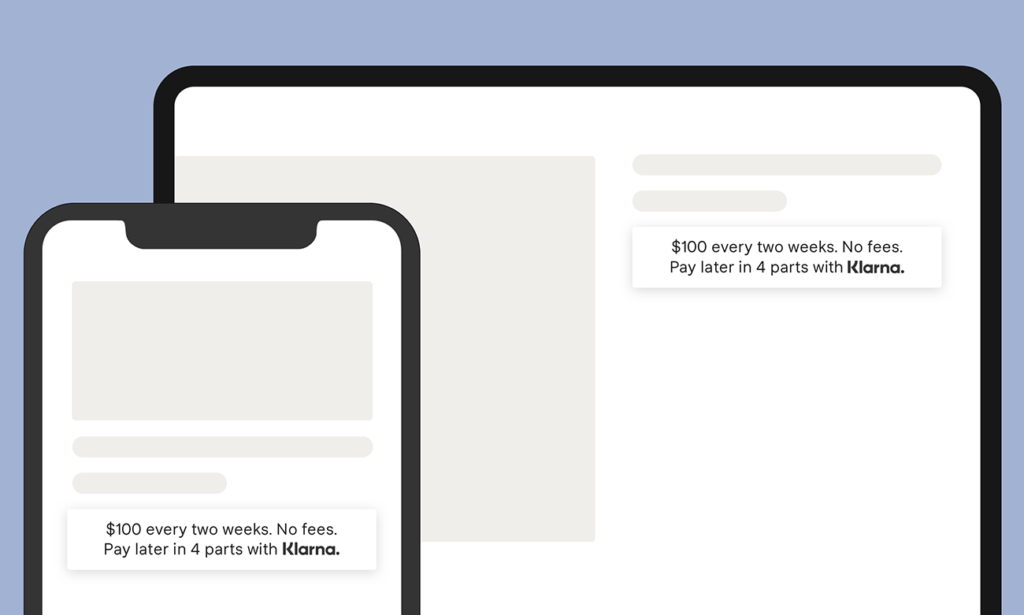
First of all ensure that the On Site Messaging platform is activated in the merchant portal before starting WordPress setup.
Prepare the plugin files, upload/activate correctly, and then configure Klarna messaging settings from WooCommerce payment gateway options.
Installation
- Download the zip file and unzip with the respective extractor application.
- If you use the WordPress plugin uploader to install this plugin skip to step 4.
- Upload the entire plugin directory to your /wp content/plugins/ directory.
- Activate the plugin from the Plugins menu in WordPress Admin.
CONFIGURATION
- Navigate to WooCommerce -> Settings -> Payments and open Klarna Checkout or Klarna Payments gateway settings.
- At the bottom of those pages you should see a section called Klarna On Site Messaging.
- Data Client ID: copy the credential from merchant portal and paste it in the field.
- Enable Product placement to show messaging on product pages.
- Product page placement data key: enter the data key from merchant portal.
- Product On Site Messaging placement: select where to show it on product pages.
- Enable Cart placement to show messaging on cart page.
- Cart page placement data key: enter cart page data key from merchant portal.
- Cart On Site Messaging placement: select where to show it on cart page.
Installation
After activating On Site Messaging on merchant portal, complete all prerequisites and repeat the gateway level Klarna placement setup if required by theme/plugin behavior.
- Navigate to payment settings and open Klarna On Site Messaging section.
- Verify Data Client ID and placement keys.
- Enable product/cart placement options and save.
- Accept terms and conditions and complete login.
Share this article
Related Articles
 Android
May 2, 2025
Benefits of Using a Scanner Application
The Ios Ocr Sdk is designed to extract data from images and documents with high accuracy, reducing manual typing effort.
 Website Development
April 11, 2025
Expectation vs Reality for Website Development
From planning and design to coding and SEO, website development involves more than templates and quick launch expectations.
 BuyNowPayLater
Apr 4, 2025
How to Integrate Klarna On site Messaging in Shopify
Setup steps and requirements for integrating Klarna on site messaging into Shopify storefronts.